Azure AI Foundry
Azure AI Foundry is a default AI Service Provider in WSO2 API Manager which has Multi Model Provider support that allows you to manage multiple AI models from various providers. This guide explains how to configure Azure AI Foundry by adding model families (providers) and their associated models within the API Manager. For more information about Azure AI Foundry, see the Azure AI Foundry Documentation.
Configuring Azure AI Foundry
Follow the steps to set up and customize Azure AI Foundry within your API Manager environment.
Step 1: Access Azure AI Foundry Configuration
- Login to the Admin Portal (
https://<hostname>:9443/admin) - Navigate to the AI Service Providers section in the left navigation pane
- Find AzureAIFoundry in the list of AI Service Providers and click on it to edit the configuration
Step 2: Configure Model Providers
The Model Provider(s) section allows you to add and configure different AI model providers within Azure AI Foundry.
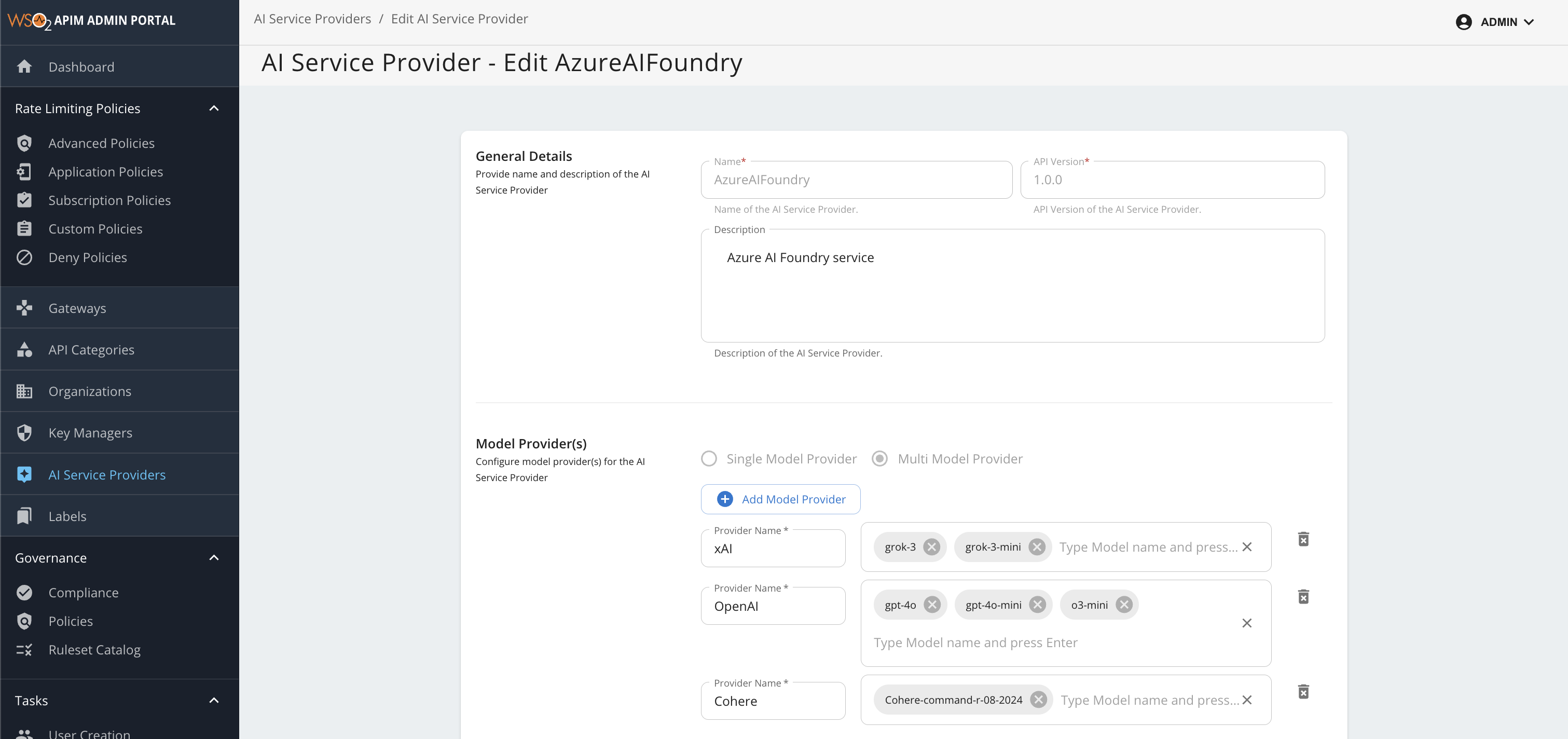
Adding Model Providers
- Click the "+ Add Model Provider" button to add a new provider family
- Configure each provider with the following details:
Provider Configuration Fields
| Field | Description |
|---|---|
| Provider Name | Name of the AI provider (e.g., Azure OpenAI, Cohere, xAI) |
| Models | List of model deployment names available from this provider |
Add Multiple Model Providers and models
Adding multiple models under a provider allows you to use advanced routing strategies such as failover, load balancing, and other traffic management options. You can configure these routing policies when creating AI APIs to control how requests are distributed among the available models. For more details, see Multi-Model Routing Overview.
Example Provider Configurations
The following are example provider configurations that illustrate how to group models by their provider (model family) and specify the available models for each.
| Provider Name | Example Models |
|---|---|
| Azure OpenAI | gpt-4o, gpt-4o-mini, o3-mini |
| Cohere | cohere-command-a |
| xAI | grok-3, grok-3-mini |
You can use these as a starting point and add or remove models as needed based on your Azure AI Foundry access and requirements.
Azure AI Foundry supports multiple model providers. For a complete and up-to-date list of all supported models, see the Azure AI Foundry Supported Models documentation.
Adding Models to a Provider
- In the provider configuration, you'll see an input field labeled Type Model name and press Enter
- Type the complete model name and press Enter to add it to the provider
- You can add multiple models by typing your model name and pressing enter for each one. This enables model-based load balancing and failover capabilities within the AI Gateway.
- You can add or remove individual models as needed to match your requirements
Step 3: Save Configuration
After configuring your model providers, click Update to apply the changes.
Once you have saved your changes, the updated Azure AI Foundry configuration will be applied and made available for use in your AI APIs, enabling seamless integration with the selected models.