Creating Custom AI Service Providers
This guide explains how to integrate WSO2 API Manager with custom AI service providers, allowing you to access various AI APIs via API Manager's AI Gateway. It provides step-by-step instructions for configuring any AI service provider to effectively manage and track AI API interactions.
Prerequisites
Before creating a custom AI service provider, ensure you have:
- Access to the Admin Portal
- The API definition (OpenAPI/Swagger specification) for your AI service provider
- Authentication credentials (API key, bearer token, etc.) for the AI service
- Understanding of the AI service's request/response structure
Steps to Create a Custom AI Service Provider
- Login to the Admin Portal
-
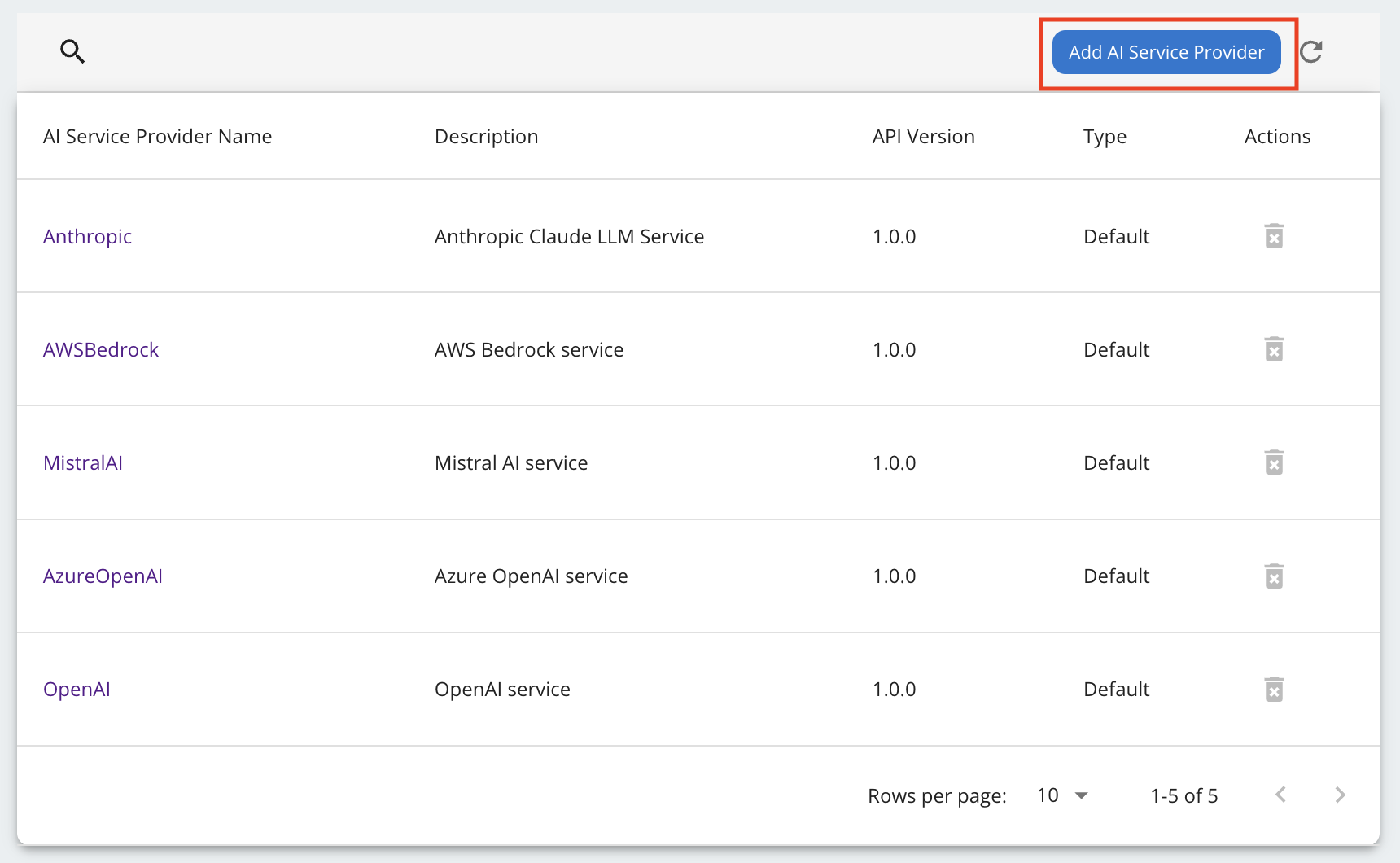
Navigate to the AI Service Providers section and click on Add AI Service Provider.
-
Fill in the general details for the AI Service Provider as shown below.
Field Description Name Enter a descriptive name for your AI service provider (e.g., "Custom AI Provider", "My AI Service") API Version Specify the version of your AI service API (e.g., "1.0.0", "v2") Description Provide a brief description of the AI service and its capabilities -
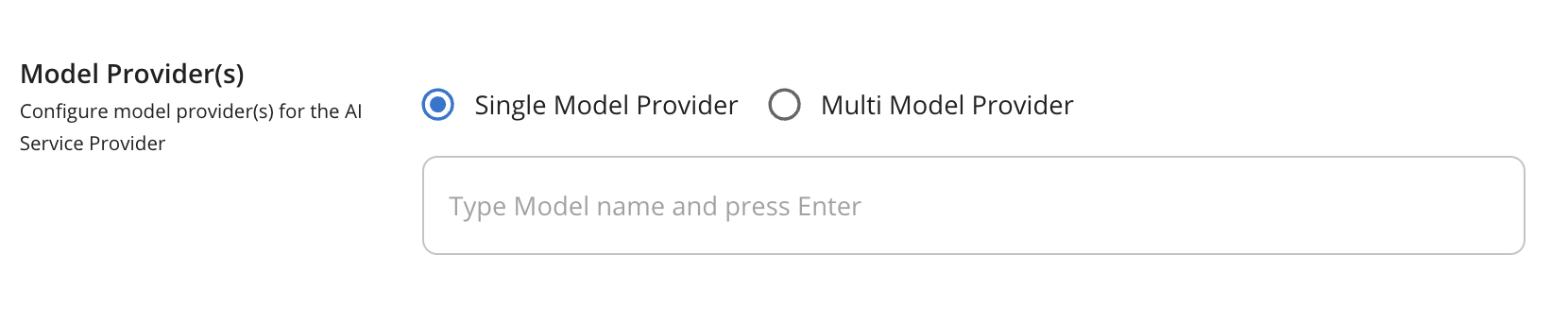
Configure Model Provider Type - Choose between Single Model Provider and Multi Model Provider options:
- Single Model Provider: Use this option when you want to configure a single model for the provider
- Multi Model Provider: Use this option when you want to configure an AI Service with multiple service providers like AWS Bedrock.
-
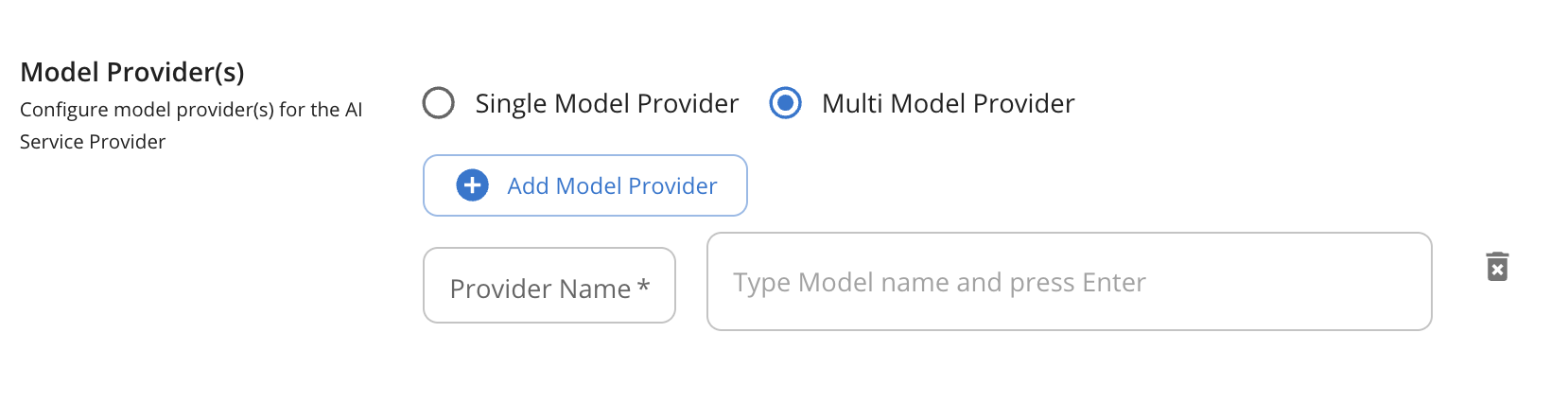
Add Available Models - Enter the model names supported by your AI service provider. You can add multiple models by typing your model name and pressing enter. This enables model-based load balancing and failover capabilities.
For Single Model Provider: - Add the models provided by your AI service provider
For Multi Model Provider: - You can add multiple model providers and their associated models
Important: Ensure you use the exact model names/IDs as expected by your AI service provider. The model names should match exactly what the provider's API documentation specifies.
-
Configure LLM configurations by mapping the AI service's request and response fields. You'll need to specify JSONPath expressions to extract relevant information from the API responses.
Attribute Name Input Source Attribute Identifier (JSONPath) Request Model payload JSONPath to extract model name from request (e.g., $.model,$.parameters.model)Response Model payload JSONPath to extract model name from response (e.g., $.model,$.model_info.name)Prompt Token Count payload JSONPath to extract input/prompt token count (e.g., $.usage.input_tokens,$.usage.prompt_tokens)Completion Token Count payload JSONPath to extract output/completion token count (e.g., $.usage.output_tokens,$.usage.completion_tokens)Total Token Count payload JSONPath to extract total token count (e.g., $.usage.total_tokens,$.usage.total_tokens)Remaining Token Count header Header name for remaining tokens (e.g., x-ratelimit-remaining,x-tokens-remaining)JSONPath Examples
$.model- Extracts the model field from the root of the JSON$.usage.input_tokens- Extracts input tokens from a nested usage object$.choices[0].message.content- Extracts content from the first choice in an array$.data.model- Extracts model from a nested data object
-
Upload the API Definition - Provide the OpenAPI/Swagger specification for your AI service provider. This should be in YAML or JSON format and describe the endpoints, request/response schemas, and authentication methods.
Note
Ensure your API definition accurately reflects the current version of your AI service provider's API. You may need to create or modify the OpenAPI specification if one is not publicly available.
-
Configure Authentication - Set up the authentication method required by your AI service provider:
For API Key Authentication: - Type:
authHeader- Identifier: Header name (e.g.,x-api-key,Authorization,api-key)For Bearer Token Authentication: - Type:
authHeader- Identifier:AuthorizationFor Custom Authentication: - Type:
authHeader- Identifier: Your custom header name
-
Choose the connector type as
default. -
Click Add to integrate your custom AI service provider.
Next Steps
Once your custom AI service provider is configured:
- Create AI APIs using the configured provider - See Getting Started with AI Gateway
- Set up rate limiting and policies specific to your AI service - See Rate Limiting and API Policies
- Configure monitoring and analytics to track usage - See API Analytics
- Test the integration with sample requests - See AI Gateway Overview
- Deploy to production and manage access through the API Gateway - See Deploy an API