Create a MCP Server Using an Existing API
This creation path is ideal when the API you want to expose as MCP tools is already deployed in WSO2 API Manager. Instead of starting from an OpenAPI file, you can directly select the API from the Publisher Portal, choose which of its operations should become MCP tools, and configure the MCP Server details.
This approach is faster when:
- You have a stable API in APIM and want to extend it with MCP capabilities.
- You want to reuse existing API governance (security, throttling, analytics) while enabling tool-style access.
Tip
Well-structured API resources with clear naming and descriptions will translate into more intuitive MCP tools.
-
Go to the Publisher Portal
- Navigate to MCP Servers in the Publisher Portal.
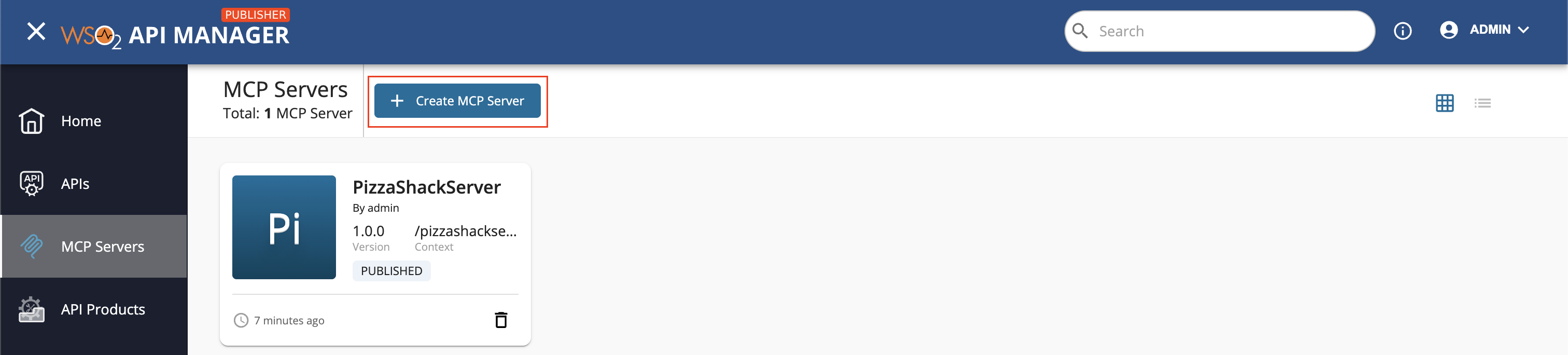
- If you have existing MCP Servers, click the Create MCP Server button.
- If this is your first MCP Server, you'll see the "Let’s get started!" page.
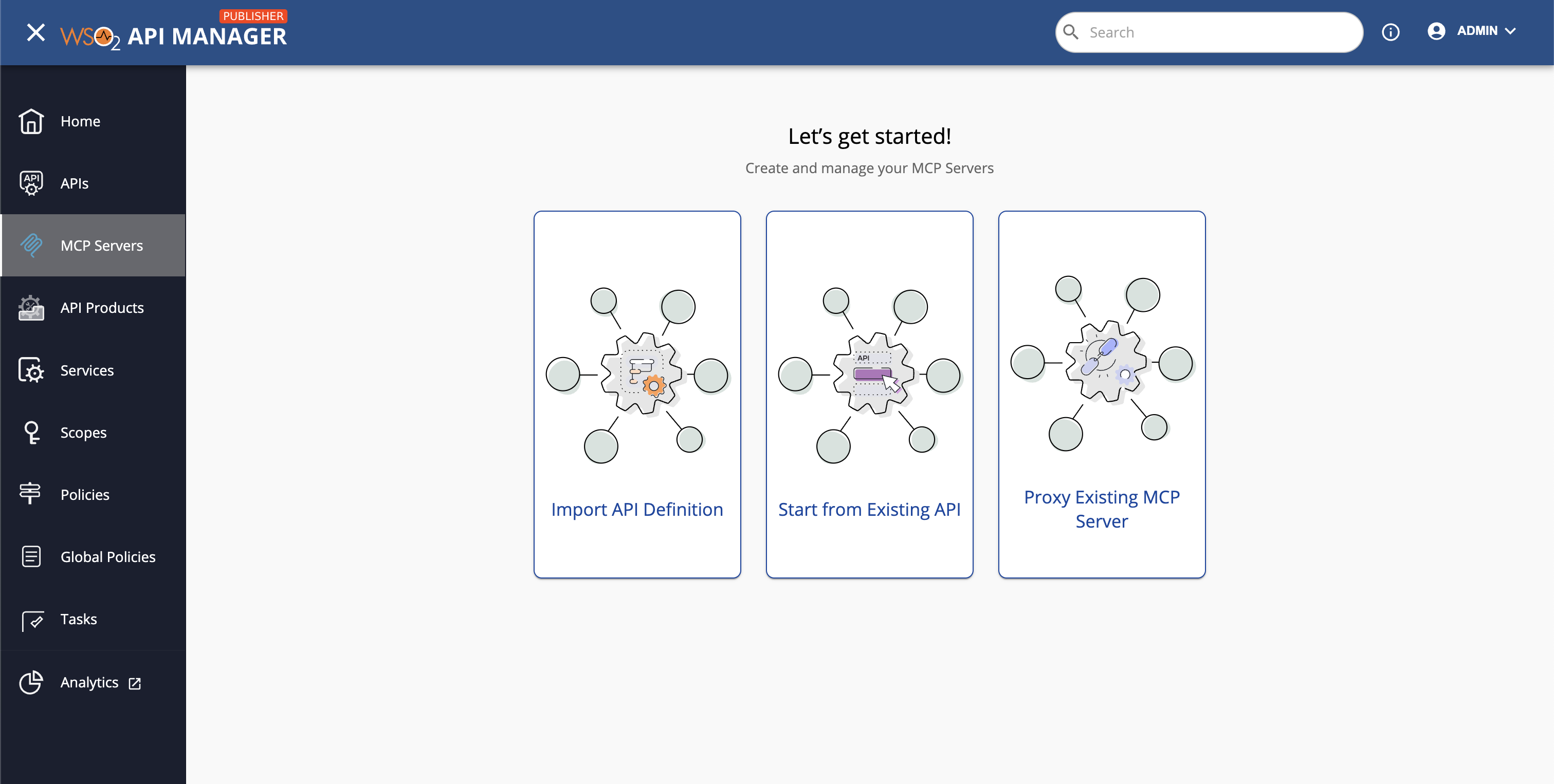
- In the navigation, click Start from Existing API → Create MCP Server from Existing API.
-
Pick the source API
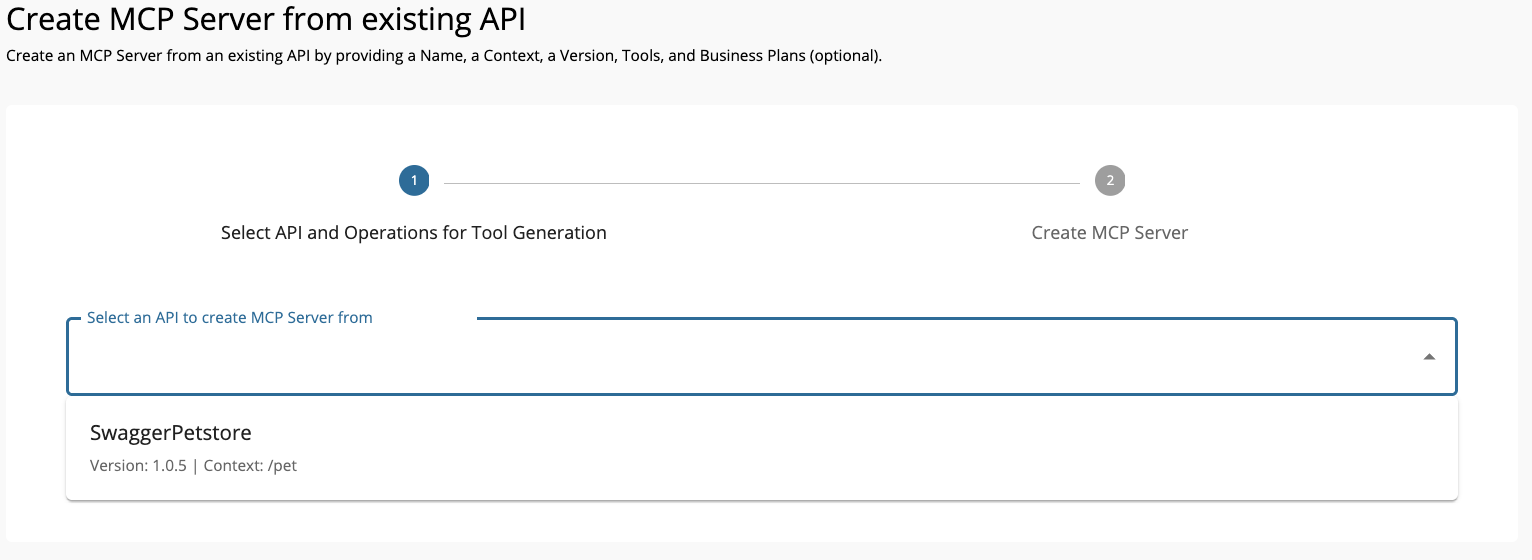
- From the list of available APIs, select the one to generate tools from.
-
Click Next.
-
Select resources to become tools
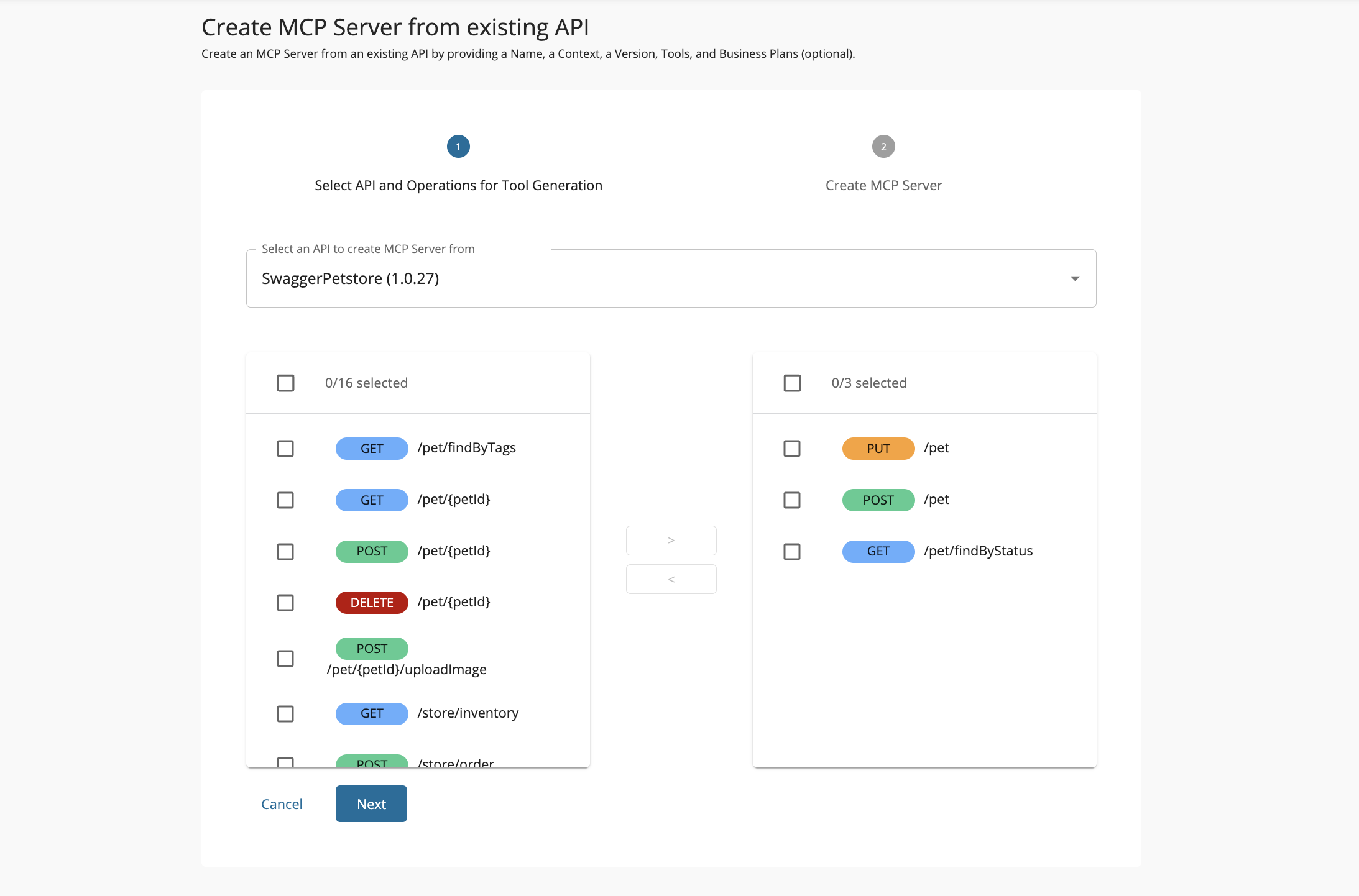
- Choose which API operations should become tools.
- Click Next.
-
Enter MCP Server details
Provide the details and click Create.
Field Sample value Name Petstore Context /petstore Version 1.0.6 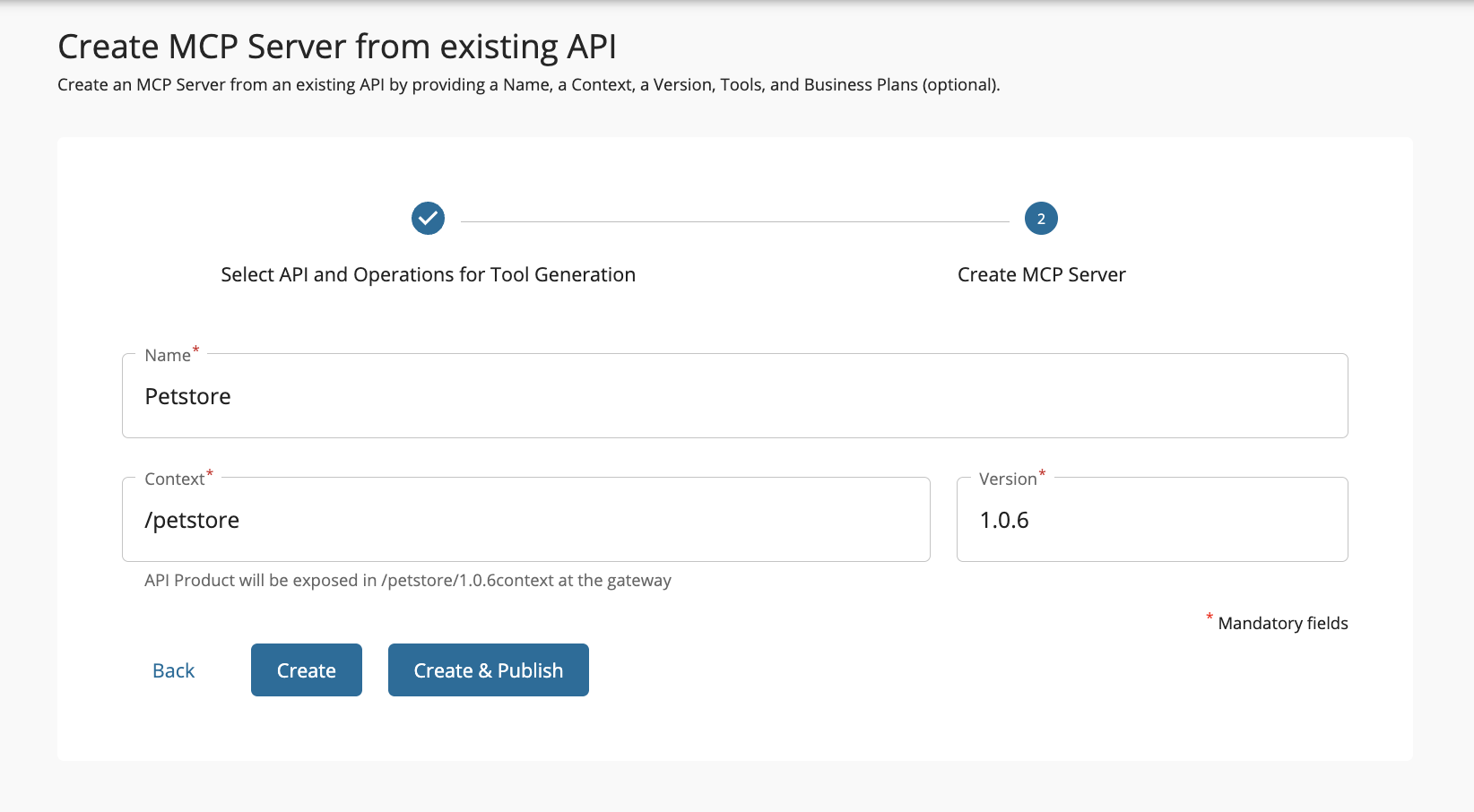
Next Step → Update and Deploy Your MCP Server
Once the MCP Server is created, you may want to refine tool names and descriptions, test them in the MCP Playground, and deploy them to the desired Gateway. For a complete walkthrough, see Updating Tools and Deploying the MCP Server.