Consume MCP Servers from MCP Hub
WSO2 API Manager can act as an MCP Hub, providing centralized discovery, management, and reuse of MCP Servers across teams and environments. When running as an MCP Hub, the API Manager Developer Portal exclusively works with MCP Servers — no APIs are available in this mode.
Configure WSO2 API Manager Developer Portal as a MCP Hub
To configure the Developer Portal to operate in MCP-ONLY mode, add or update the following in deployment.toml and restart the server:
[apim.devportal]
# Other existing configurations
mode = "MCP_ONLY"
Tip
You can run the API Manager Developer Portal in different modes depending on your needs:
- MCP_ONLY — operate only with MCP Servers (pure MCP Hub).
- HYBRID — support both APIs and MCP Servers.
- API_ONLY — operate only with APIs.
Test MCP Servers using the Integrated MCP Playground
The Integrated MCP Playground is a visual testing interface in the Developer Portal that lets you explore an MCP Server schema and invoke its tools directly.
Follow the instructions below to use the MCP Playground to test a MCP Server:
Prerequisite
- You need to have an application subscribed to the MCP Server. For more information, see Subscribe to a MCP Server.
- Obtain an access token for the application. You can use the token endpoint to get a JWT token. For more information, see Generate an Access Token.
The examples here use the Petstore MCP Server, which was created in Create a MCP Server from an OpenAPI definition.
-
Sign in to the WSO2 Developer Portal (
https://<hostname>:9443/devportal). -
Click MCP Servers, and click on the MCP Server that you need to invoke.
-
Click Try Out in MCP Server Overview tab and go to Test → MCP Playground
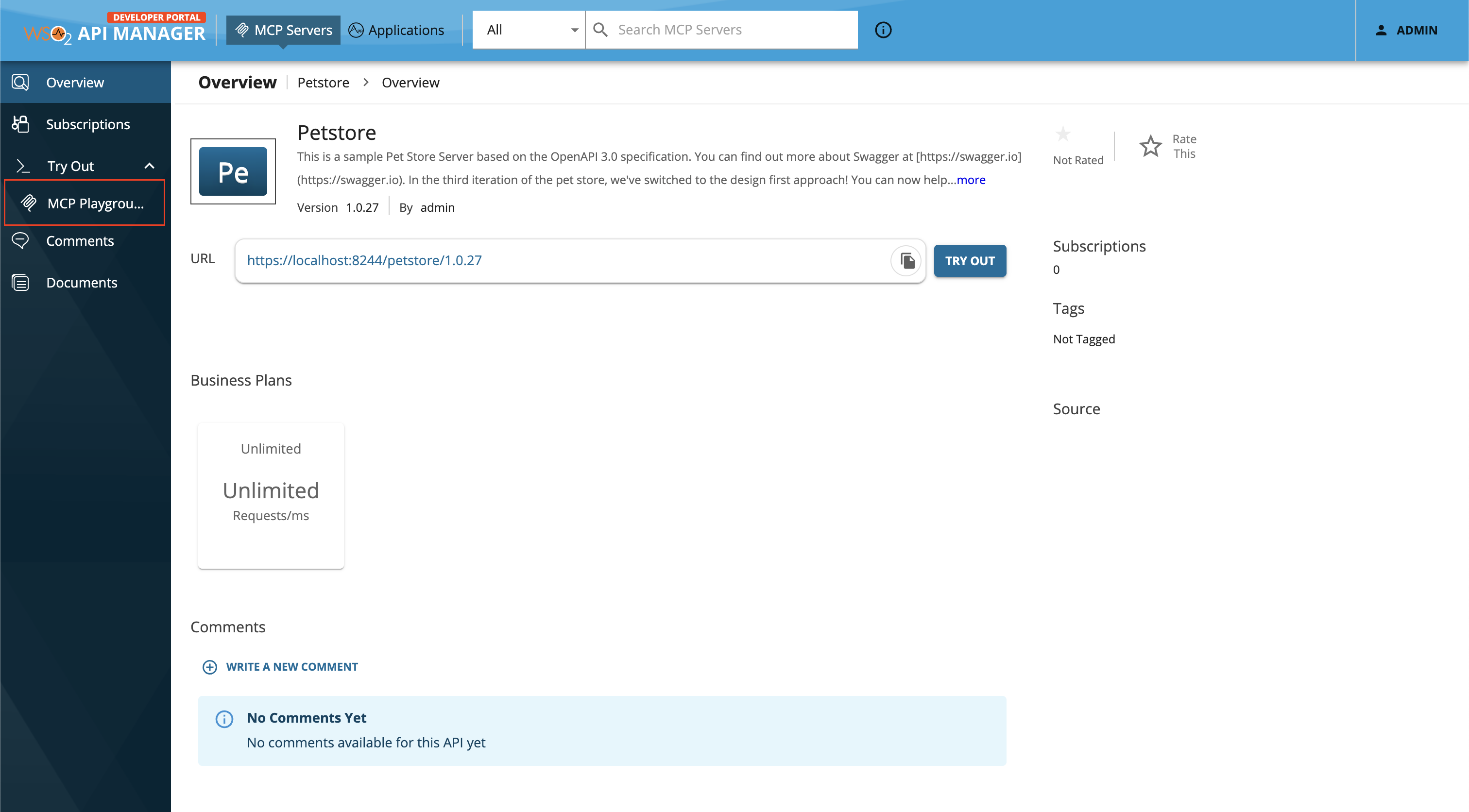
The MCP Playground UI to test the Petstore MCP Server appears.
-
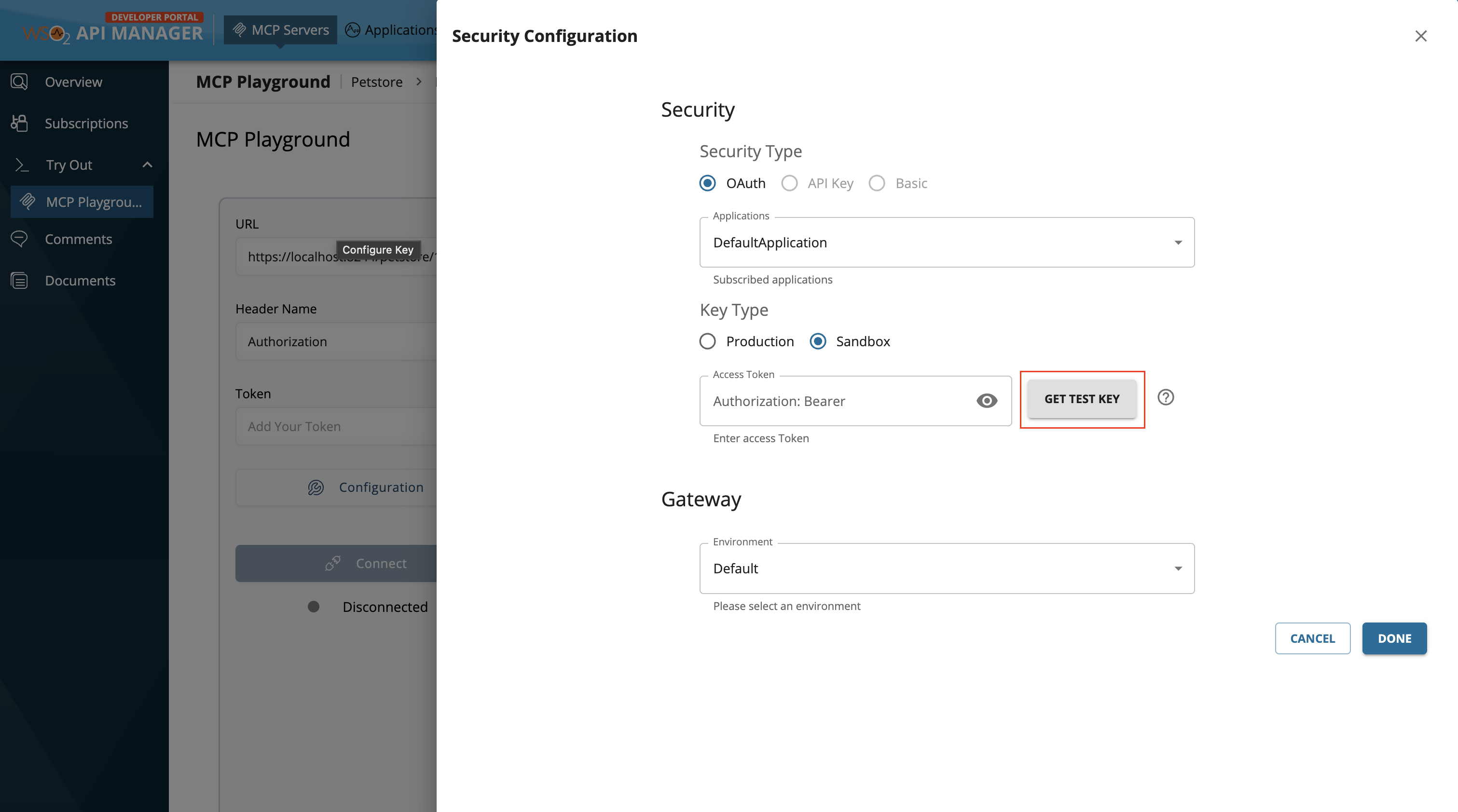
Enter the copied access token in the Token field or click
Configurationbutton on the MCP Playground and if a test key is not populated, click on GET TEST KEY.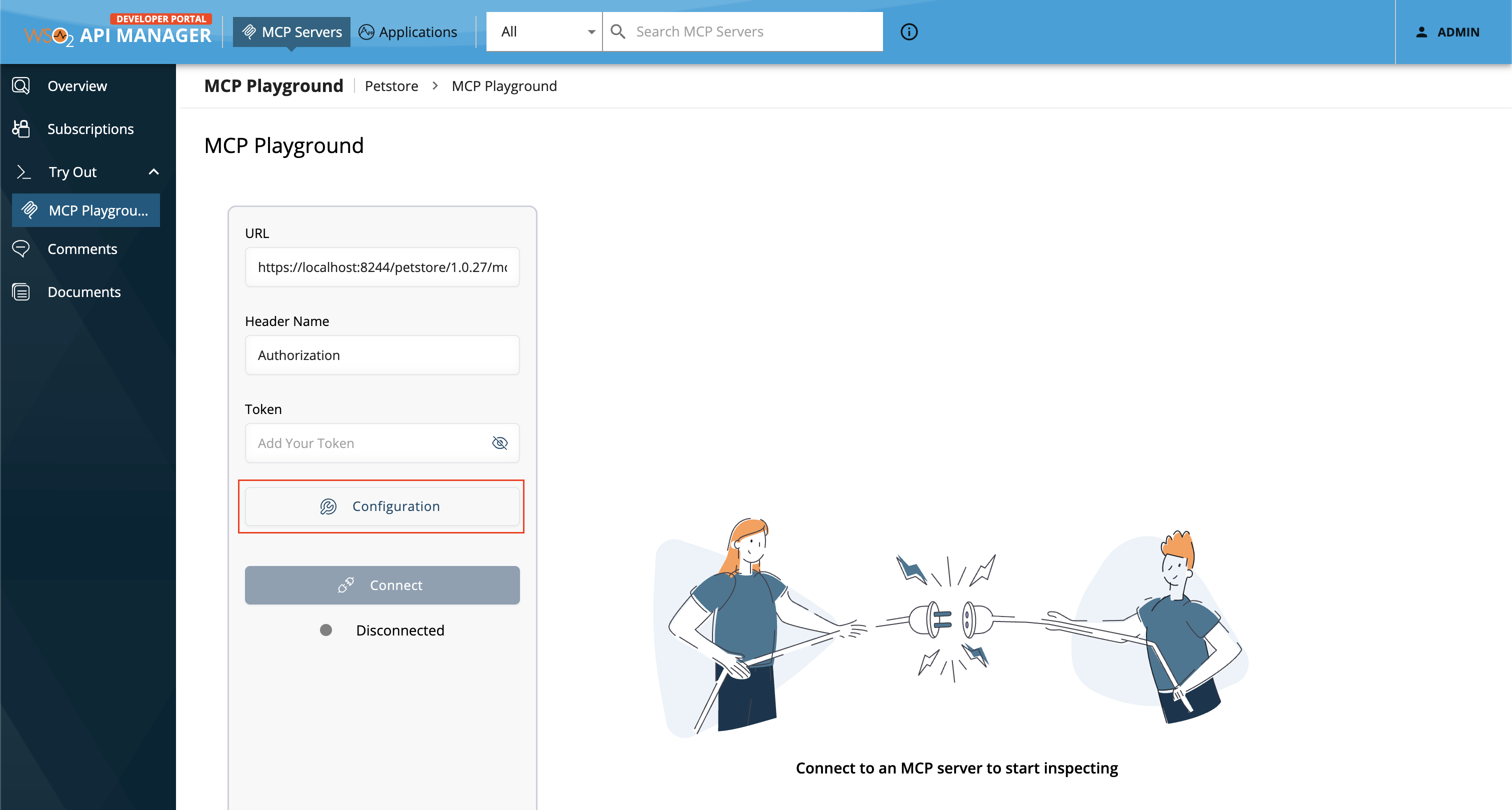
-
Click on Connect to connect with your deployed MCP Server.
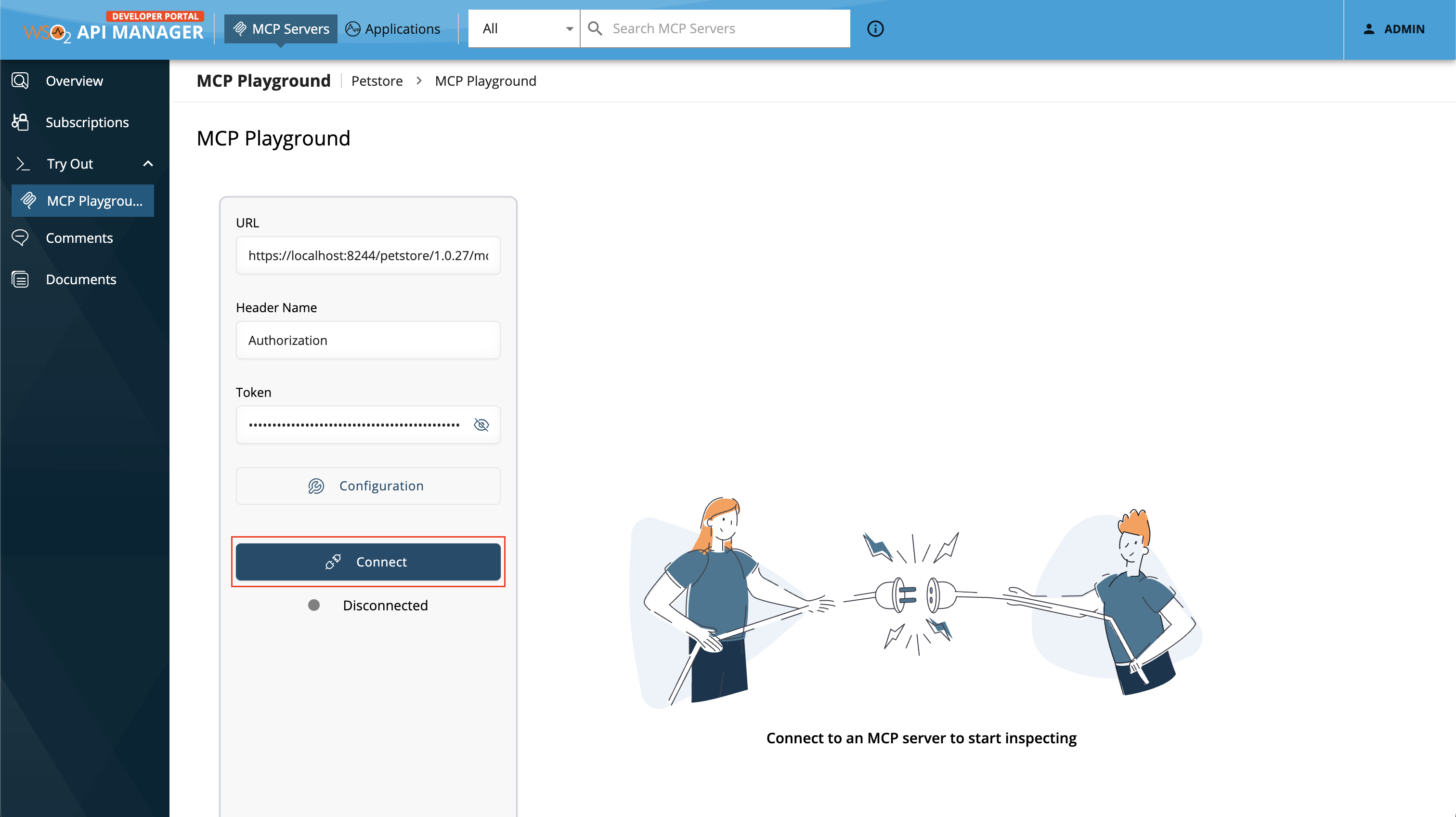
Once connected, you can click List Tools button to see the available tools of the MCP Server. You can select and call individual tools by providing the parameters if necessary.
-
Expand a method and enter the values to test. Click on the execute button to invoke the tool.
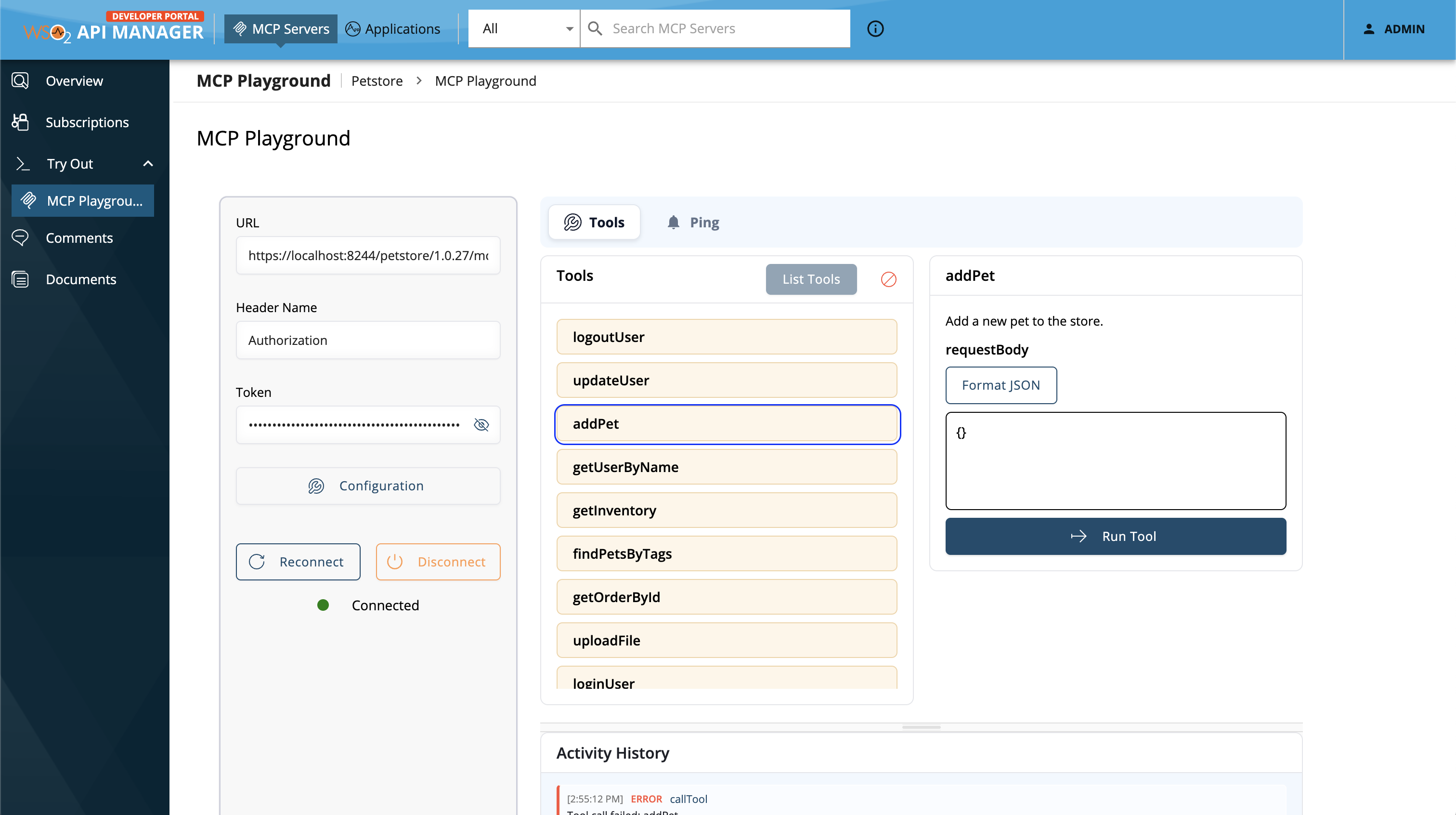
Note the successful response for the tool invocation.
You have now successfully invoked a MCP Server tool using the MCP Playground.