Reset Application Throttling Policies
As an application owner, you can reset the application-level rate limiting quota for specific end-users of your application. This allows individual users to continue using your application even after they've exhausted their quota, without waiting for the time window to reset.
When to Reset User Quotas
Application-level rate limiting enforces a shared quota across all users of your application. When a user exhausts their portion of this quota, they are throttled and cannot make further API calls until the quota resets.
You may need to reset a user's quota in situations such as:
- A user encountered legitimate high usage and needs continued access
- Testing activities consumed a user's quota unintentionally
- A user reports throttling issues that need immediate resolution
- You want to provide temporary additional capacity to specific users
How User Quotas Work
For each user of your application, a counter is maintained by the API Manager traffic manager. When the counter reaches the limit defined by your application's throttle policy, that specific user is throttled and further API invocations are restricted.
If a user wants to continue invoking APIs using your application with the same throttle policy, you can reset the quota used by that specific user only, without affecting other users of your application.
Reset a User's Quota
Follow these steps to reset the quota for a specific user of your application:
-
Navigate to the Applications section in the Developer Portal and open your application.
-
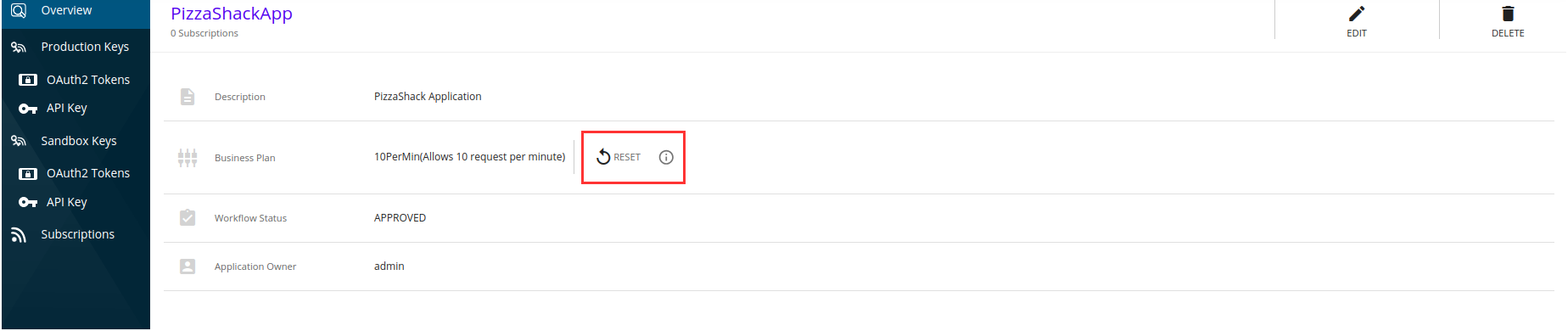
In the application overview page, locate the Reset User Quota section.
-
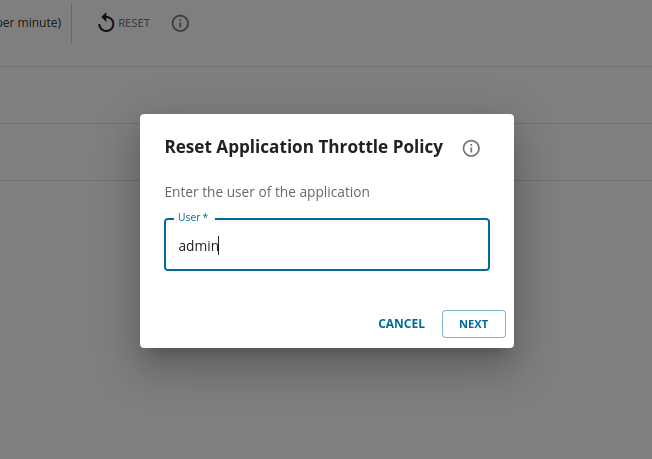
Fill in the User field with either the username or the UUID of the end-user whose quota needs to be reset, then click Next.
Note
The username or UUID you provide will not be validated by API Manager. You will not receive feedback on whether the reset was successful. Ensure the username or UUID is correct before proceeding.
-
Review that the User value is correct, then click Reset.
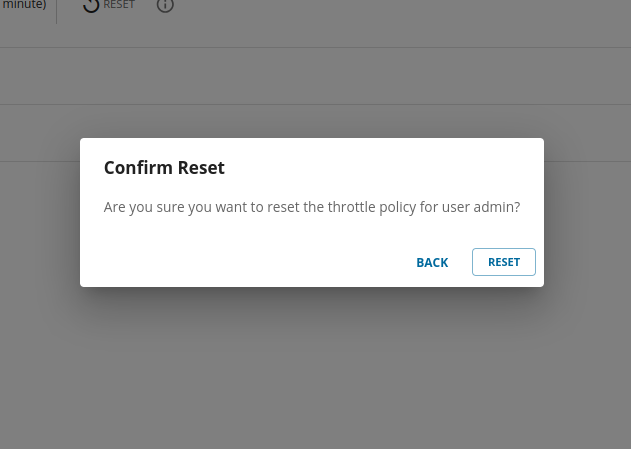
When you click Reset, a reset request is sent to the traffic manager and you'll see a notification saying "Reset request has been triggered successfully". This notification confirms the request was sent, but doesn't guarantee the reset completed successfully.
To verify the reset worked, the user should try invoking APIs using the application again.
Identifying the Correct User Value
The username or UUID used by the traffic manager to identify users depends on the OAuth grant type used to obtain access tokens:
-
Client Credentials Grant: Use the normal username of the application owner. With this grant type, your application accesses APIs on behalf of the client rather than individual users. See Client Credentials Grant for details.
-
Password Grant and Authorization Code Grant: Use the UUID of the end-user, not their username. See Password Grant and Authorization Code Grant for details.
Finding User UUIDs Using Analytics
You can use log-based analytics solutions to identify user UUIDs:
Each successful API invocation generates a log entry containing details about the API, application, and user. Look for the userName field in the logs. For example:
"userName":"c10bcb9b-eabb-40d6-93be-c7f2a41682b1@carbon.super"
To get the UUID to enter in the reset dialog:
- Locate the
userNamevalue in the log entry - Remove the tenant domain suffix (e.g.,
@carbon.super) - Use the remaining UUID (e.g.,
c10bcb9b-eabb-40d6-93be-c7f2a41682b1) as the User value
Tip
If you're unsure which user value to use, check your application's authentication method and consult the analytics logs to identify the correct UUID or username format.