Discover API on AWS API Gateway
From 4.6.0 release, WSO2 API Manager supports federated API discovery for APIs deployed in AWS API Gateway. This enables APIs created and managed in AWS to be discovered and brought under the centralized control plane of WSO2 API Manager.
Once discovered, these APIs can fully leverage the control plane capabilities of WSO2 API Manager, including:
Governance enforcement – apply security, compliance, and lifecycle policies consistently.
Unified management – maintain a centralized view of all APIs, eliminating manual imports and fragmented operations.
Developer Portal Features – provide a unified catalog where developers can discover AWS-hosted APIs, explore documentation, test endpoints, subscribe to APIs, and access keys and tokens seamlessly.
By integrating AWS APIs into the control plane, organizations can ensure consistent standards, stronger governance, and improved visibility across their API ecosystem.
Follow the instructions given below to configure AWS API Gateway as a Federated API Gateway.
Step 1: Configure User Credentials in AWS API Gateway
- Login to your AWS account and navigate to Console Home. Search for “IAM” in the search bar.
- Click on the IAM service. Navigate to Users under Access Management.
- Create an IAM user in AWS with
AmazonAPIGatewayAdministratorpermission. -
Obtain an Access Key and Secret Access Key for the IAM user created in the previous step. Select Third-party service as the use case.
Note
Note that it is not recommended to enter root credentials of the AWS account. Instead, create a new IAM user with the required permissions and use the credentials of the IAM user. For more information see Best practices for managing AWS access keys.
Step 2 : Register AWS API Gateway as a Federated Gateway in WSO2 API Manager
-
Start WSO2 API Manager.
-
Sign in to the Admin Portal.
https://<hostname>:9443/admin
https://localhost:9443/admin
-
Add a new Gateway Environment.
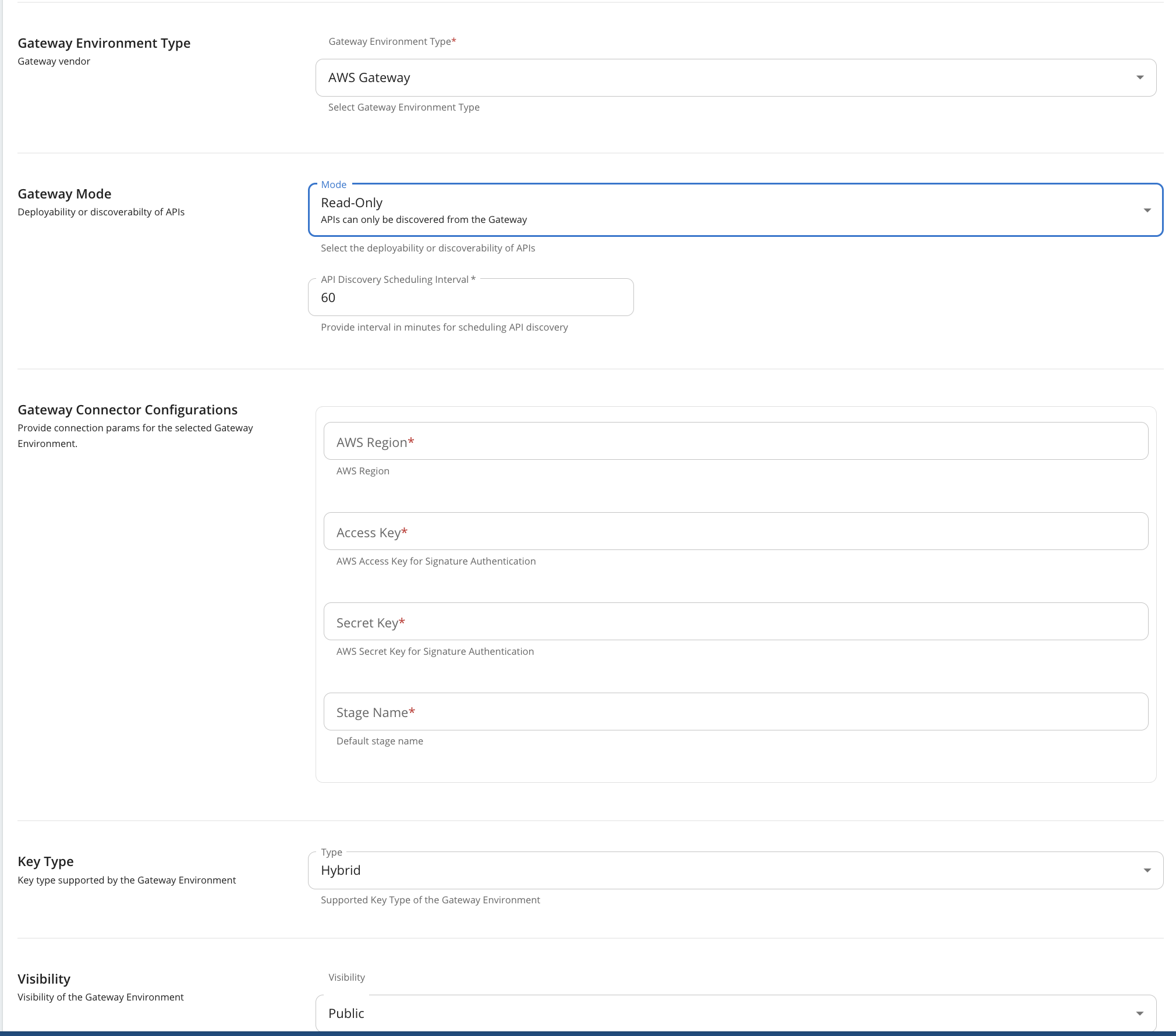
- Select the Gateway Type as AWS Gateway from the dropdown and provide the relevant details in the fields accordingly.
- Select the Gateway Mode as Read Only, or Read Write based on the requirement.
- Enter the Access Key and Secret Key obtained in Step 1 under Gateway Connector Configurations.
- Provide the scheduling interval for API discovery in minutes.
- Save the configurations.
Tip
If you want to disable the scheduling of API Discovery for the configured gateway environment, specify 0 as the scheduling interval.
Step 3 : Deploy to Developer Portal
- Sign in to Publisher Portal.
https://<hostname>:9443/publisher
https://localhost:9443/publisher
- Go to APIs view and the APIs discovered from AWS API Gateway will be listed.
- Click on the API to view the API details.
- From the left menu, click Lifecycle and select Publish so that API will deploy to the Developer Portal.
Step 4 : Invoke the API
- Sign in to the Developer Portal.
https://<hostname>:9443/devportal
https://localhost:9443/devportal
-
Create an Application and obtain an access token from the KM you configured in step 3.
-
Navigate to tryout and invoke the API with above access token.