Deploy API on Azure API Gateway
WSO2 API Manager supports deploying APIs to Azure API Gateways from version 4.6.0 onwards. WSO2 API Manager comes packed with an Azure gateway connector and it is capable of deploying/undeploying APIs created with WSO2 API Manager to Azure API Gateways.
Follow the instructions given below to configure Azure API Gateway as a Federated API Gateway on WSO2 API Manager.
Step 1: Create an Azure API Management Service
- Login to your Azure account and navigate to Home.
- Go to Subscriptions and create a new Subscription.
- Go to Resource Groups and create a new resource group.
- Navigate to Home, create a resource, search for API Management in the services search bar, select the API Management service, and create an API Management service after choosing a subscription.
Step 2: Create an application and generate credentials
- In the Azure portal, navigate to Home, then Microsoft Entra ID.
- Click on Add, then App Registration.
- Create an application.
- Navigate to your application, click on the Manage dropdown, and select Certificates and Secrets.
- Click on New Client Secret and click Add.
- Save the secret Value somewhere safe.
Note
Save the secret value somewhere safe as you will only be able to view it immediately after creation.
Step 3 : Register Azure API Gateway as a Federated Gateway in WSO2 API Manager
- Start WSO2 API Manager.
-
Sign in to the Admin Portal.
https://<hostname>:9443/adminhttps://localhost:9443/admin -
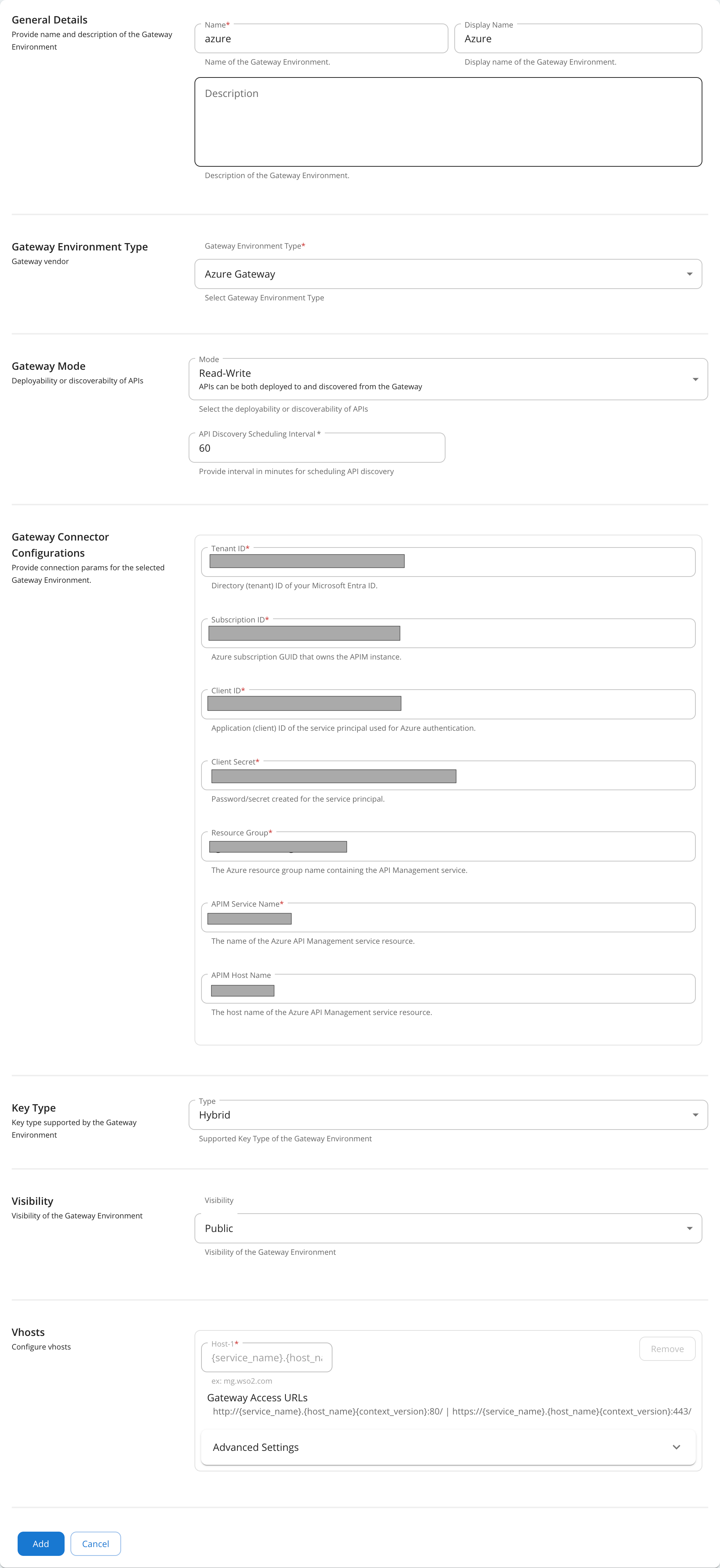
Add a new Gateway Environment.
- Select the Gateway type as Azure and provide the relevant details in the fields accordingly.
- Gateway Mode must be either Write-Only or Read-Write if you need to deploy APIs.
- Tenant ID - Navigate to Home, Microsoft Entra ID, overview, and find the Tenant ID.
- Subscription ID - Navigate to Home, subscriptions, and find the subscription ID in front of your subscription.
- Client ID - Navigate to Microsoft Entra ID, Manage, App Registrations, and find the client ID in front of your application.
- Client Secret - The secret value you saved before when creating the client secret.
- Resource Group - Navigate to Home, Resource group, and find the name of your resource group.
- APIM Service name - Navigate to Home, All resources, and find the name of your resource.
- APIM Hostname - The hostname assigned to APIs deployed on Azure. The default is
azure-api.net.
-
Save the configurations.
Step 4 : Create and Design API
-
Sign in to the Publisher Portal.
https://<hostname>:9443/publisherhttps://localhost:9443/publisher -
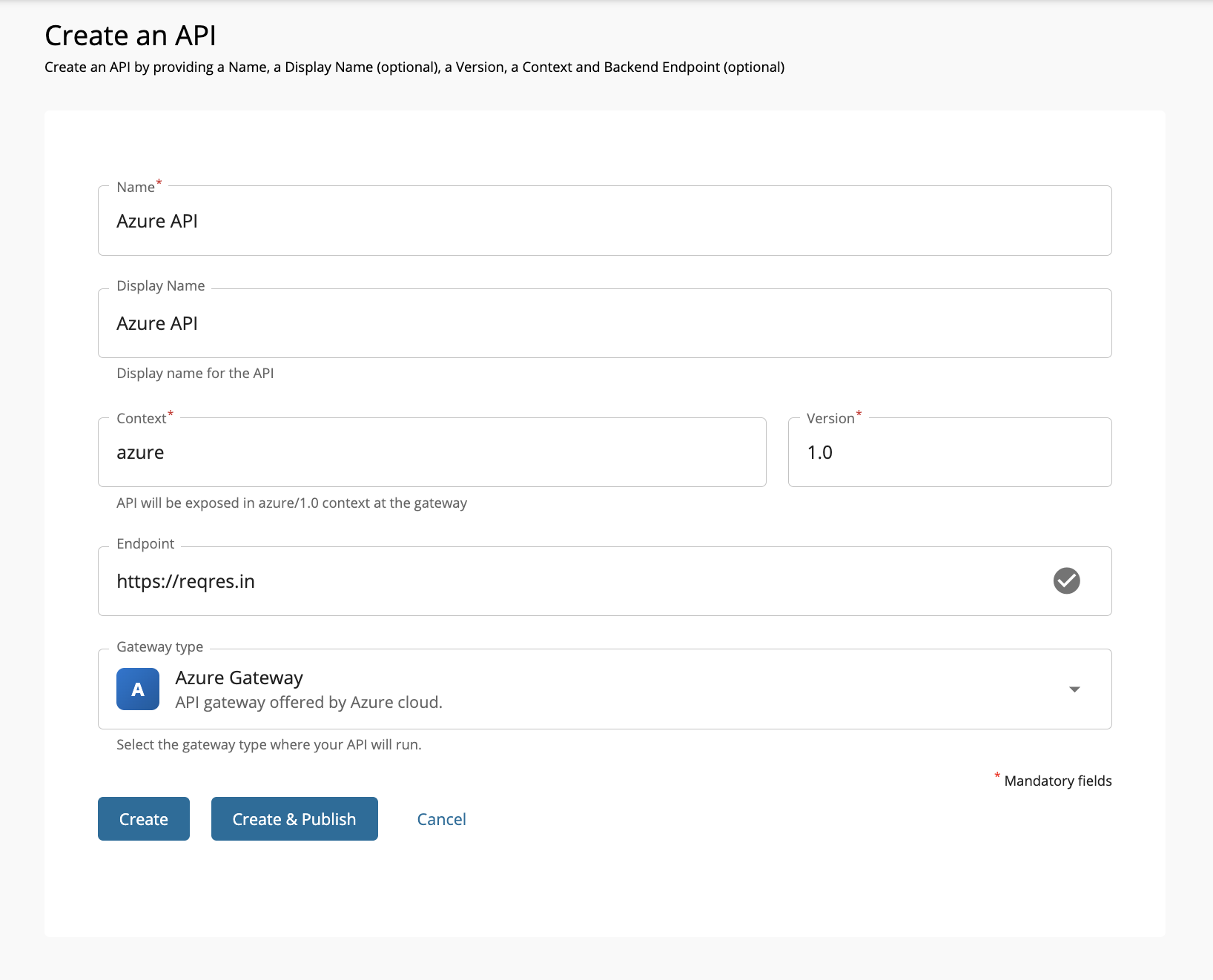
Create a new REST API and select Gateway Type as Azure. And provide a valid endpoint URL.
-
Design the API as required.
Step 5 : Configure Security for the API
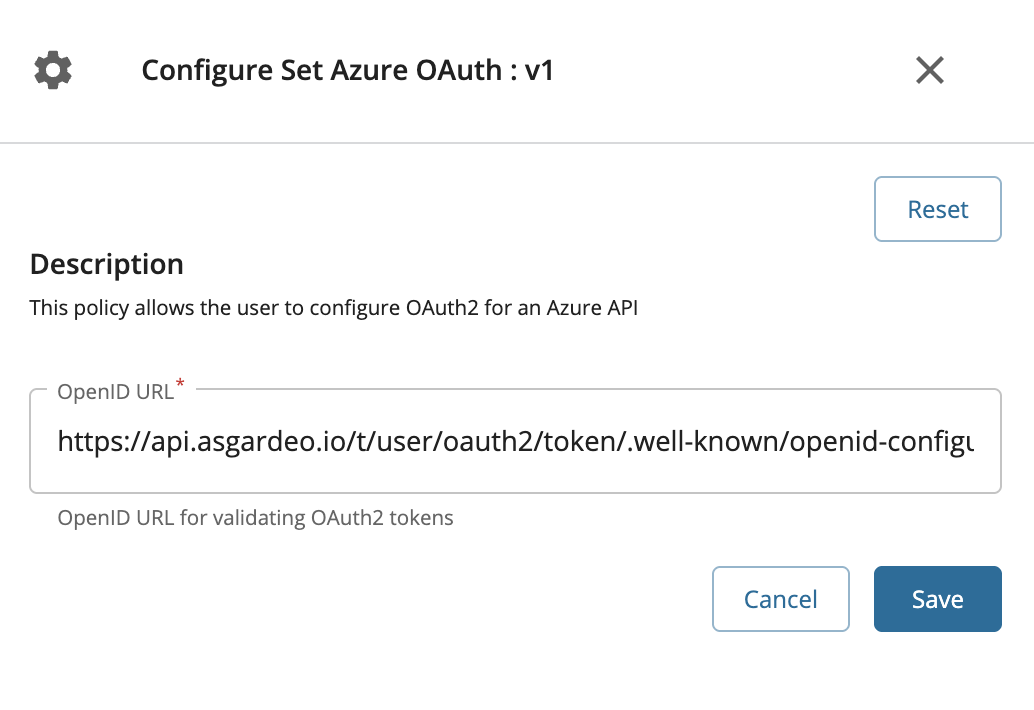
By default, APIs will be deployed in Azure without any security. But the capability to enable jwt validation is provided out of the box. Adding the Azure OAuth2 policy from the WSO2 API Manager's publisher portal as an API level or operation level policy will enable the validate-jwt policy of the same type (Operation level or API level) in Azure API Management side. You will need to provide an Open ID configuration endpoint URL from where Open ID configuration metadata can be obtained (A well known URL), with which jwt tokens provided with the API invocation will be validated.
-
In WSO2 API Publisher portal, navigate to the
Policiessection of the API created in Step 4 and move to the API level policies tab. -
Attach the Azure OAuth2.0 policy to the API. Here you will have to provide the OpenID URL .
Step 6 : Deploy and Publish API
-
Navigate to
Deploymentsand deploy the API to the Azure API Gateway configured in Step 1. -
Navigate to Lifecycle and Publish the API to the Developer portal.
Step 7 : Invoke the API
- Sign in to the Developer Portal.
https://<hostname>:9443/devportal
https://localhost:9443/devportal
-
Create an Application and obtain a jwt access token from where you provided the OpenID URL.
-
Navigate to tryout and invoke the API with the above access token.
Note
If you do not specify an Azure OAuth2 policy when deploying the API, the API will be deployed without any security. Azure OAuth2 policy can be applied at either the API level or the resource level.
Note
Please note that no subscriptions are required for the APIs deployed to Azure API Gateway.
Note
Please note that only REST APIs are supported for deployment to Azure API Gateway.
Note
Out of the policies that are supported by Azure, WSO2 supports enable-jwt (which is the aforementioned OAuth policy), set-header, rate-limit, and CORS. They behave the same as their Azure counterparts. Adding an Azure policy to a flow in an Azure API in WSO2 Publisher portal will add the same to Azure when deployed.