Discover APIs on Envoy Gateway in Kubernetes
From the 4.6.0 release onward, WSO2 API Manager introduces federated API discovery for APIs deployed on Envoy Gateway in a Kubernetes cluster. WSO2 API Manager includes a built-in Envoy Gateway connector and a separate Gateway Agent, which enables the discovery of APIs deployed on Envoy Gateway in the cluster.
API custom resources (CRs) created and managed in Envoy Gateway on Kubernetes are automatically discovered and brought under the centralized control plane of WSO2 API Manager. The Gateway Agent detects HTTPRoutes, Services, BackendTrafficPolicies and SecurityPolicies applied in the Kubernetes cluster and reconciles them into APIs in WSO2 API Manager.
Follow the steps below to configure Envoy Gateway in a Kubernetes cluster as a Federated API Gateway for API discovery.
Step 1. Install Envoy Gateway
Run the following command to install Envoy Gateway:
helm install eg oci://docker.io/envoyproxy/gateway-helm --version v1.5.1 -n envoy-gateway-system --create-namespace
Step 2. Install Nginx
Run the following command to install Nginx Ingress Controller:
helm upgrade --install ingress-nginx ingress-nginx \
  --repo https://kubernetes.github.io/ingress-nginx \
  --namespace ingress-nginx --create-namespace
Step 3. Install APIM 4.6.0
Run the following commands to install WSO2 API Manager 4.6.0 based on your system architecture:
helm repo remove wso2helmapim
helm repo add wso2helmapim https://github.com/wso2/helm-apim/releases/download/acp-4.6.0-beta
helm repo update
helm install apim wso2helmapim/wso2am-acp --version 4.6.0-4 -f https://raw.githubusercontent.com/wso2-extensions/apim-gw-connectors/refs/heads/main/samples/helm/APIM-4-6-0/apim-acp-linux-arm-values.yaml --debug --wait --timeout 10m0s
helm repo remove wso2helmapim
helm repo add wso2helmapim https://github.com/wso2/helm-apim/releases/download/acp-4.6.0-beta
helm repo update
helm install apim wso2helmapim/wso2am-acp --version 4.6.0-4 -f https://raw.githubusercontent.com/wso2-extensions/apim-gw-connectors/refs/heads/main/samples/helm/APIM-4-6-0/apim-acp-linux-amd-values.yaml --debug --wait --timeout 10m0s
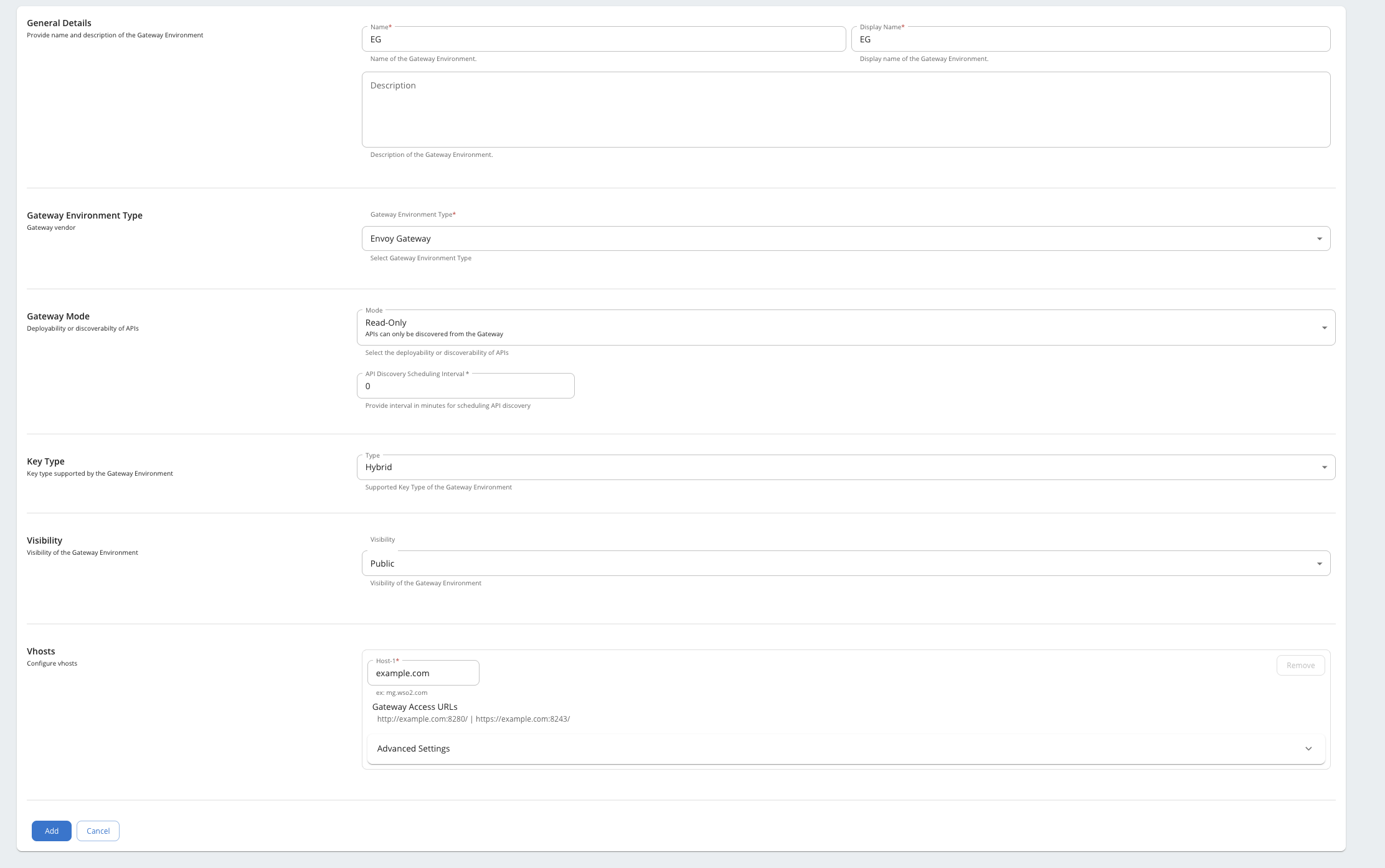
Step 4. Add EnvoyGateway as external gateway environment
Follow these steps to add EnvoyGateway as an external gateway environment:
- Open your browser and navigate to
https://am.wso2.com/admin/settings/environments - Click the Add Gateway Environment button
- Fill in the following information:
- General Details section:
- Name:
EG - Display Name:
EG
- Name:
- Gateway Environment Type section: Select
Envoy Gatewayfrom the dropdown - Vhosts section: Add
example.comas host-1 - Click 'Add'
Step 5. Install APIM Common Agent
Run the following commands to install the APIM Common Agent:
helm repo remove agent
helm repo add agent https://github.com/wso2-extensions/apim-gw-connectors/releases/download/apim-k8s-common-gw-connector-1.0.0-beta
helm repo update
helm install  apim-apk-agent agent/apim-k8s-common-gw-helm --version 1.0.0-beta  -f https://raw.githubusercontent.com/wso2-extensions/apim-gw-connectors/refs/heads/main/samples/helm/APIM-4-6-0/apim-common-agent-values.yaml --debug --wait --timeout 10m0s \
    --set controlPlane.serviceURL=https://apim-wso2am-acp-1-service.default.svc.cluster.local:9443/ \
    --set controlPlane.eventListeningEndpoints="amqp://admin:admin@apim-wso2am-acp-1-service.default.svc.cluster.local:5672?retries='10'&connectdelay='30'" \
    --set controlPlane.certificates.caCertSecretName=kgw-apim-connector-test-cert \
    --set dataPlane.k8ResourceEndpoint=https://apk-wso2-kgw-config-ds-service.default.svc.cluster.local:9443/api/configurator/apis/generate-k8s-resources \
    --set dataPlane.namespace=default
Step 6. Apply sample API to cluster
Run the following command to apply a sample API to the cluster:
kubectl apply -f https://raw.githubusercontent.com/wso2-extensions/apim-gw-connectors/refs/heads/main/samples/helm/APIM-4-6-0/sample-api.yaml
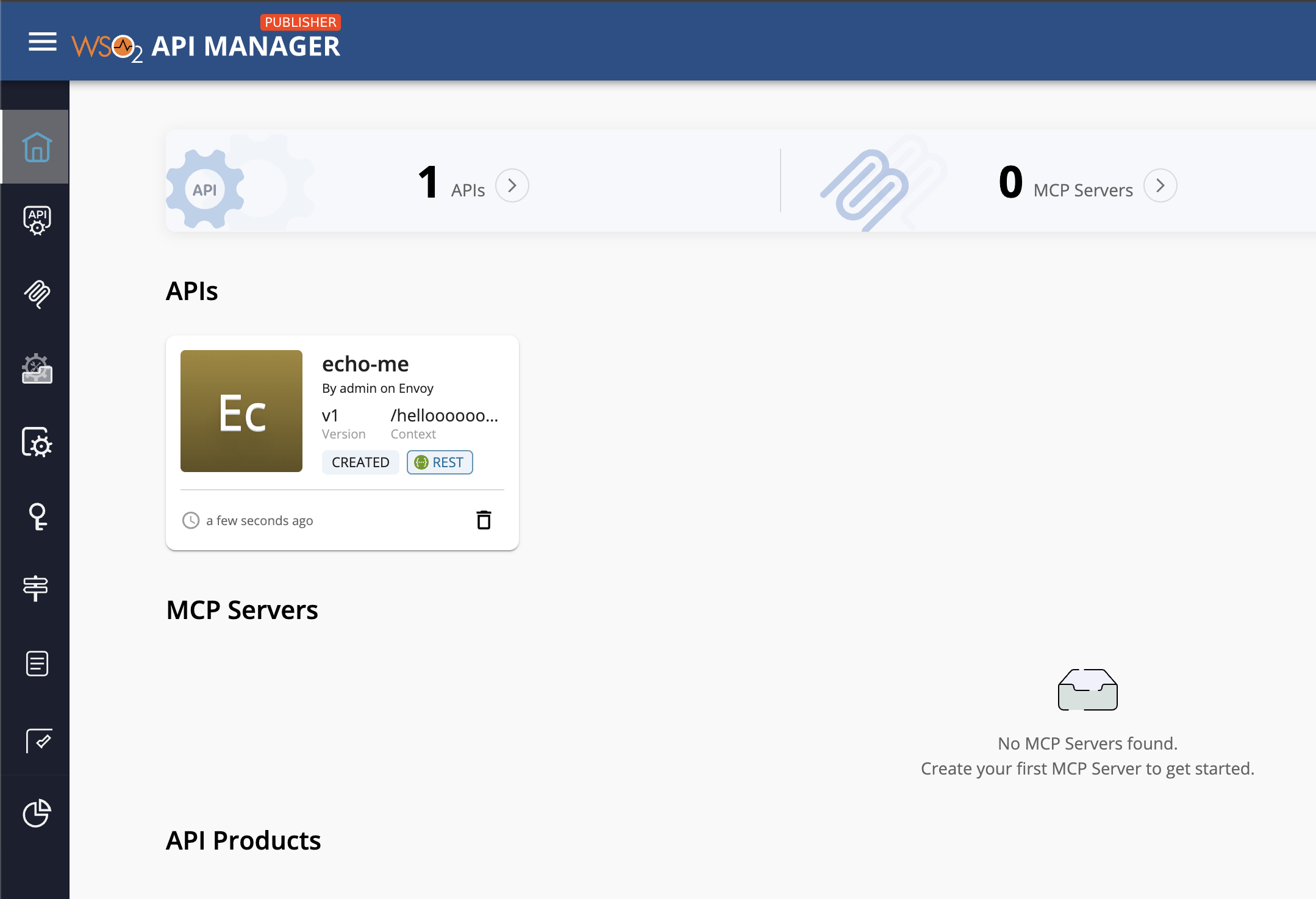
Step 7. Observe the discovered API in the Publisher
Follow these steps to observe the discovered API:
- Open your browser and navigate to
https://am.wso2.com/publisher/ - You will be able to see the discovered API in the Publisher interface
Next Steps
Now that you have discovered your API, you can:
- Publish the API to Developer Portal: Make the API available for developers to discover and use
- Subscribe to the API using applications: Create applications and subscribe to this API for access
- Invoke the API: Use the Developer Portal's try-out functionality to test the API endpoints