Discover APIs on Kong Gateway
WSO2 API Manager supports discovering APIs from Kong Gateway and managing them through its Control Plane. It comes prepackaged with a built-in Kong Gateway connector, which enables the discovery of APIs deployed in Kong Gateway.
APIs published in the Kong Dev Portal are automatically discovered as APIs in WSO2 API Manager. In addition, gateway services deployed in Kong Gateway that are not linked to any published APIs are also discovered and listed as APIs in the WSO2 Publisher Portal.
Follow the steps below to configure Kong Gateway as a Federated API Gateway for API discovery.
Step 1 : Generate an Access Token to utilize admin services in Kong Gateway
- Login to your Kong Connect account and navigate to Console Home.
-
Create a new personal access token by opening the Konnect PAT page and selecting Generate Token.
Note
For more information see Get started with Kong Gateway.
Step 2 : Retrieve the Kong Gateway Configurations
- Navigate to Gateway Manager and select the Gateway you want to connect with WSO2 API Manager.
- In the Overview page, refer to the About this Serverless Gateway section for below configuration.
- Name: This is the unique name identifier of the Gateway.
- Proxy URL: This is the URL of the Gateway which will be used to access the APIs. This hostname will be used for vhost when adding the Gateway in WSO2 API Manager.
- Admin API: This is the URL of the Gateway Admin API which will be used to manage the APIs.
- ID: This is the control plane ID of the Gateway which will be used to identify the Gateway in WSO2 API Manager.
Step 3 : Register Kong Gateway as a Federated Gateway in WSO2 API Manager
-
Start WSO2 API Manager.
-
Sign in to the Admin Portal.
https://localhost:9443/adminhttps://<hostname>:9443/admin -
Add a new Gateway Environment.
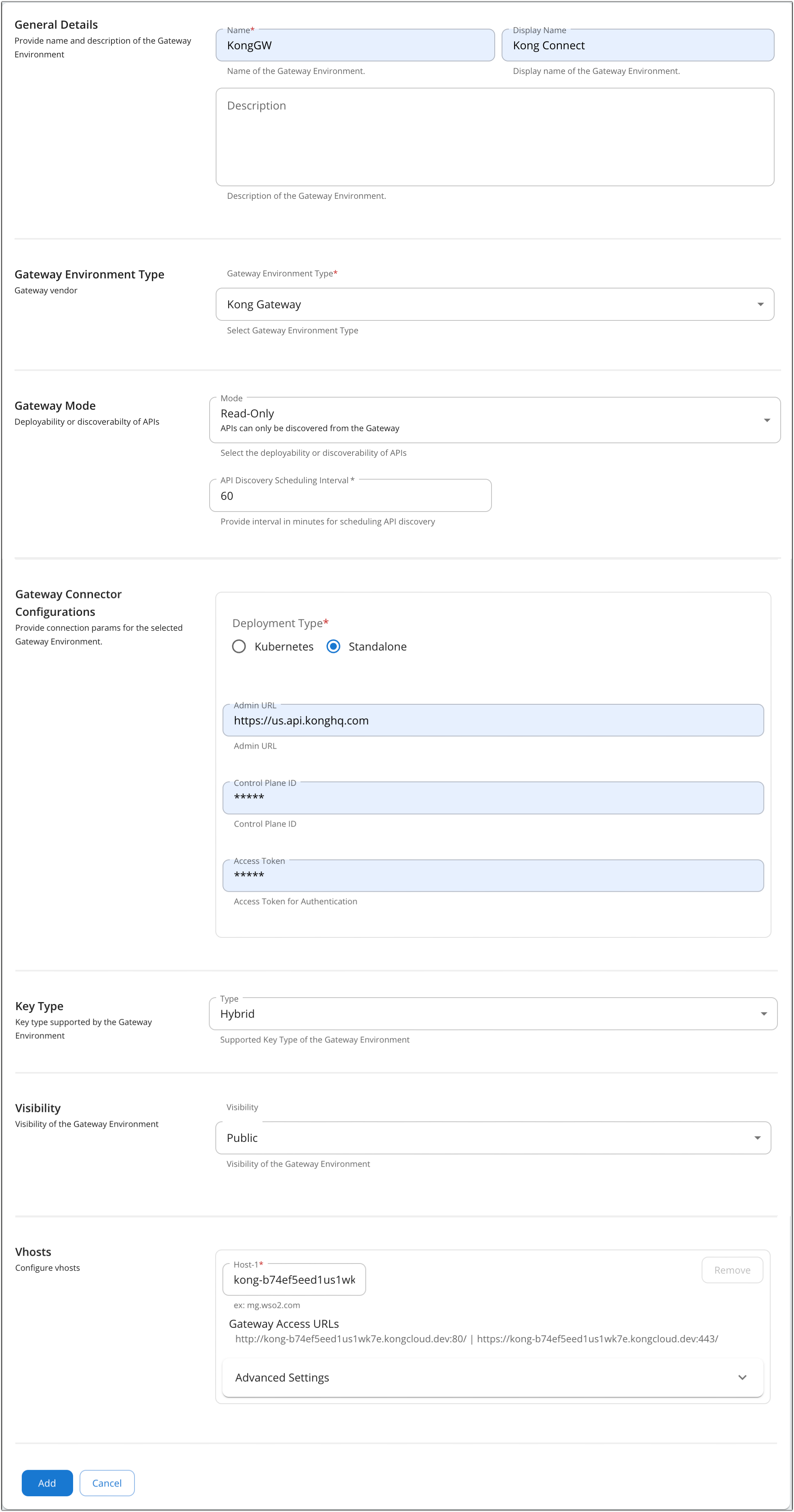
- Enter the Name obtained in Step 2 under Gateway configurations and select the Gateway type as Kong Gateway and provide the relevant details in the fields accordingly.
- Select the Gateway mode as ReadOnly, or ReadWrite based on the requirement.
- Provide the Schedule time for the API discovery.
- Select the Deployment Type as Standalone under Gateway Connector configurations.
- Enter the Admin URL with derived from the Admin API obtained in Step 2. Here the URL should be in the format
https://<region>.api.konghq.comunder Gateway Connector configurations. Please note that the Admin URL should not contain the/v2/control-planesbasepath. - Enter the Control Plane ID derived from the ID obtained in Step 2 under Gateway Connector configurations.
- Enter the Access Token obtained in Step 1 under Gateway configurations.
- Enter the Vhost derived from the Proxy URL obtained in Step 2. Here the for the Vhost provide only the hostname part of the Proxy URL.
-
Click Add button to add the Gateway.
Step 4 : Discover the API and Publish the API to Developer Portal
-
Sign in to the Publisher Portal.
https://localhost:9443/publisherhttps://<hostname>:9443/publisher -
Select the Discovered API and click on the Publish button to publish the API to DevPortal.
Step 5 : Invoke the API
-
Sign in to the Developer Portal.
https://localhost:9443/devportalhttps://<hostname>:9443/devportal -
Navigate to tryout and invoke the API.
Note
If you configure JWT Plugin for the service in Kong Gateway, you can invoke the API using the JWT token.
Note
If you configure Ratelimit Plugin for the service in Kong Gateway, you need to onboard same ratelimit policy in WSO2 Admin Portal under advance policies. Ex: If the configured ratelimit policy is 10 requests per minute, you need to onboard a WSO2 ratelimit policy with the name 10PerMin in WSO2 Admin Portal.
Note
Please note that no subscriptions are required for the APIs deployed to Kong API Gateway.